
Best Practices for Printing Barcodes: Size, Color, and Placement Guide
You have finally finished your product design, generated your codes, and are ready to send your packaging off to the printer. But wait—did you know that a poorly printed code can be completely invisible to a scanner?
Generating the data is only the first step. To ensure a seamless checkout process and accurate inventory tracking, you must print your labels correctly. A code that cannot be scanned leads to manual entry errors, frustrated cashiers, and delayed shipments. Follow these essential best practices to guarantee your codes scan perfectly every time.
1. Respect the “Quiet Zone”
One of the most common reasons a scanner fails to read a code is the lack of a “Quiet Zone.”
-
What is it? The Quiet Zone is the blank, clear space immediately to the left and right of the vertical lines (or surrounding a 2D matrix).
-
Why is it important? Scanners need this blank space to recognize where the code begins and ends. If text, graphics, or the edge of the packaging bleed into this area, the scanner will get confused.
-
The Rule: Always leave a minimum margin of at least 1/4 inch (about 6mm) of clear space on all sides of the code.
2. Color Contrast: Stick to the Basics
While it might be tempting to change the colors of your labels to match your brand’s aesthetic, getting too creative can ruin scannability. Most optical scanners use red light to read the contrast between the dark bars and the light background.
Safe vs. Unsafe Color Combinations
| Background Color | Bar Color | Scannability | Reason |
| White | Black | Excellent | Maximum contrast; the industry standard. |
| Yellow / Orange | Dark Blue / Black | Good | Light backgrounds reflect the scanner’s light well. |
| White | Red / Pink | Fails | Scanners emit red light; red bars will become invisible to the sensor. |
| Dark Blue | Black | Fails | Not enough contrast between the background and the bars. |
Pro Tip: For the best and safest results, always stick to the classic black bars on a pure white background.
3. Size and Scaling
When dealing with packaging real estate, you might be tempted to shrink your code to make room for logos or text. However, scaling down too much compromises the integrity of the image.
-
Minimum Size: For standard retail UPCs, try not to shrink the image below 80% of its original, standard size.
-
Maintain Proportions: Never stretch or squish the image disproportionately. Changing the width without changing the height (or vice versa) distorts the lines and makes the code unreadable.
4. Strategic Placement on Packaging
Where you put the label is just as important as how it looks. When applying labels to your products, avoid the following trouble areas:
-
Curves: Do not wrap a standard linear code around a tight curve (like a small bottle or tube). The scanner’s laser cannot read a curved line effectively. If you must put it on a cylinder, orient the bars like a ladder, not a picket fence.
-
Folds and Seams: Never place a label over a corner, fold, or seam where the lines could become distorted.
-
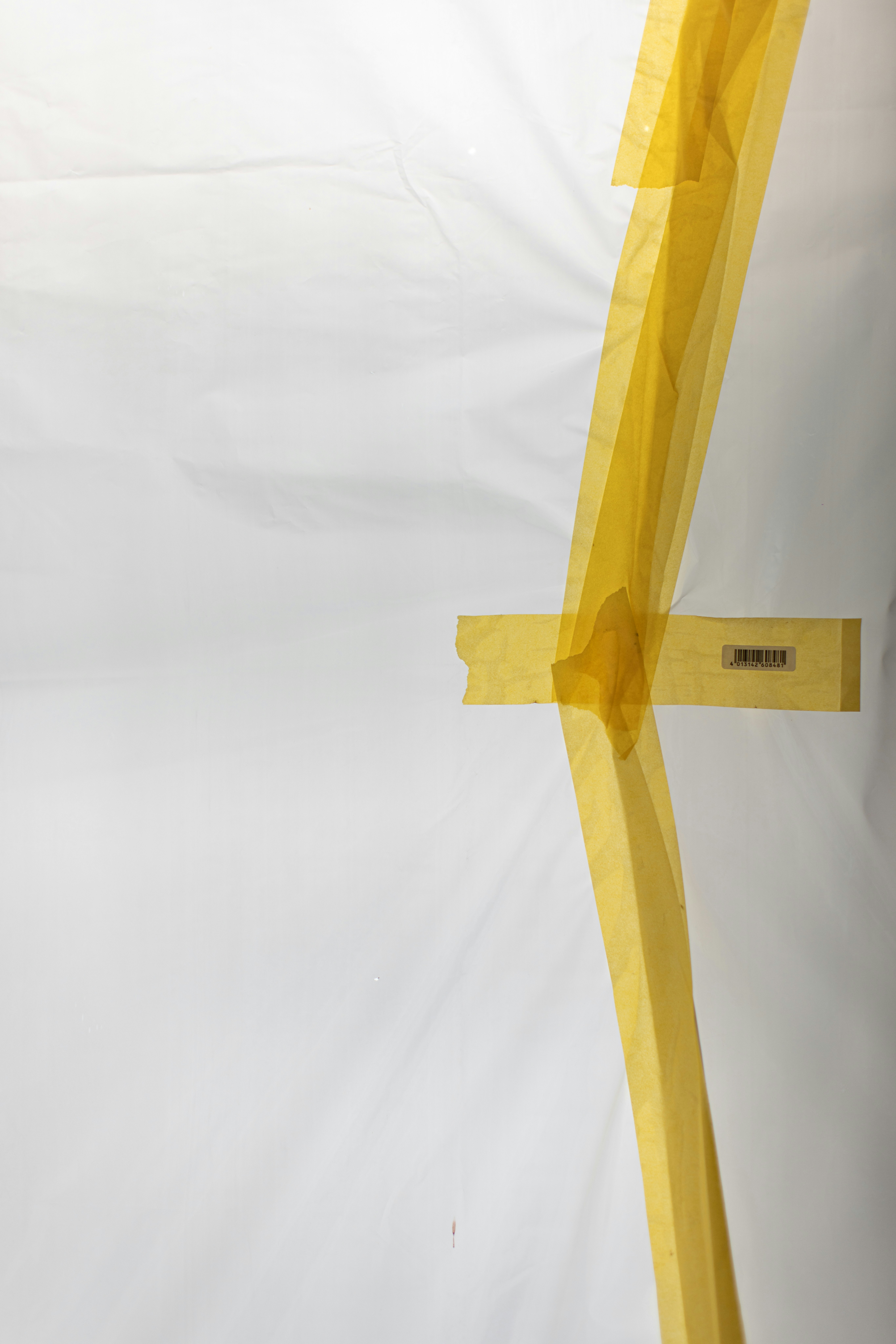
Obscured Areas: Keep the code away from areas that will be covered by shrink wrap seams or tape, as the glare from the plastic can reflect the scanner’s light.
5. Use High-Quality Images
Finally, print quality matters. A low-resolution image will look blurry and pixelated when printed, destroying the sharp edges that a scanner needs to read the data.
Always start with a crisp, high-resolution file. By using a professional, web-based barcode generator, you can download your final codes in high-quality formats (like PNG or vector formats) that guarantee sharp, clean lines regardless of the printing method you choose.
© barcodly.com- All rights reserved