
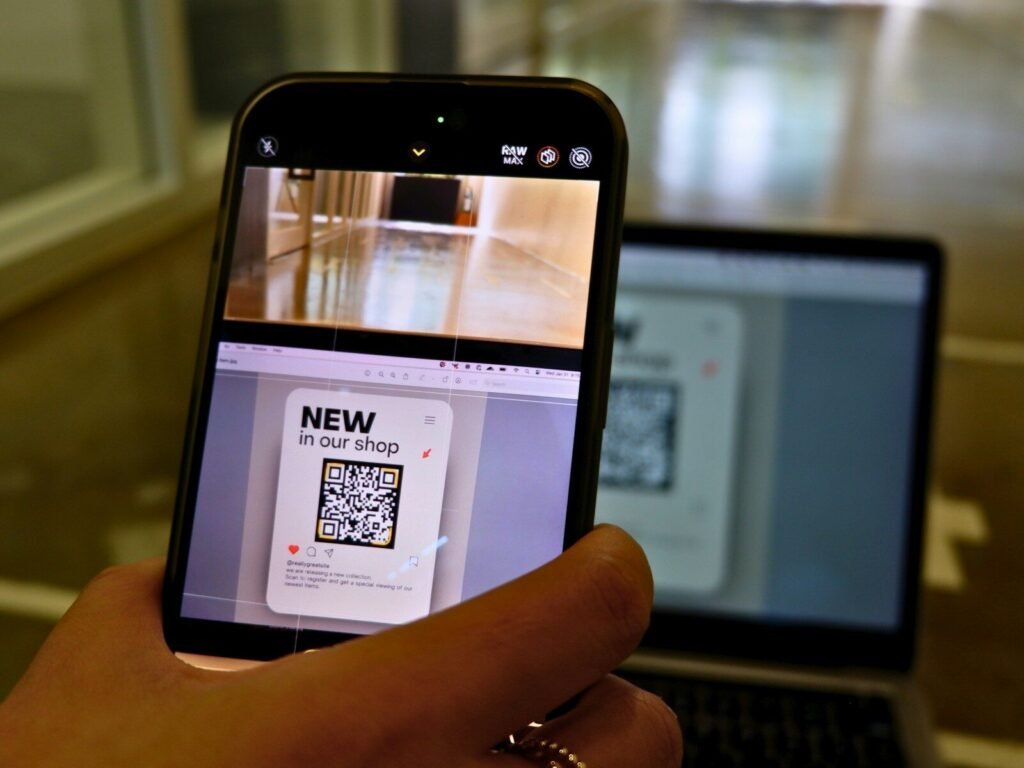
Troubleshooting 5 Common Barcode Scanning Errors
In theory, automated tracking systems work flawlessly. But in the real world, nothing halts a fast-paced retail checkout or warehouse operation quite like a label that refuses to scan. When a system relies on speed, a simple scanning failure can cause immediate bottlenecks, leading to frustrated employees and unhappy customers.
If you are dealing with unreadable labels, the issue usually falls into one of a few common categories. Here are the five most frequent scanning errors and how you can fix them.
1. Hardware Incompatibility (1D vs. 2D)
One of the most frequent—and easily solvable—reasons a code won’t read is that the scanner simply isn’t designed to read it.
-
The Issue: You are trying to scan a 2D QR Code or Data Matrix with a traditional laser scanner.
-
The Fix: Traditional laser scanners can only read linear, 1D formats (like UPC or EAN) by sweeping a line of red light horizontally. To read 2D formats, you must use an imager scanner (which takes a digital picture of the code) or a smartphone camera. Ensure your hardware matches your label type.
2. Invalid Data Structure or Checksum
Sometimes the image looks perfect, but the computer system completely rejects it upon scanning.
-
The Issue: The numbers encoded in the image do not follow standard formatting rules, or the final “check digit” is mathematically incorrect.
-
The Fix: Standard formats like UPC-A require exactly 12 digits, and the last digit is a calculated checksum based on the previous 11. If you just typed 12 random numbers into a poor-quality generator, the scanner will reject it as invalid. Always use a professional, rule-compliant barcode generator that automatically calculates the correct checksum for your data.
3. Physical Damage and Smudging
Supply chains are tough environments. Labels get bumped, scraped, and exposed to the elements.
-
The Issue: Scratches, ink smudges, or faded printing interrupt the pattern of dark and light spaces.
-
The Fix: If the label is severely damaged, it must be reprinted. To prevent future damage, consider upgrading your printing materials. Use thermal transfer printing with durable resin ribbons instead of standard direct thermal paper, especially for items stored outdoors or in high-friction environments.
4. Insufficient Quiet Zone
As mentioned in our printing best practices, scanners need breathing room to identify the code.
-
The Issue: Text, colorful packaging graphics, or the edge of the label itself is encroaching on the margins of the code.
-
The Fix: Redesign your label to ensure there is a minimum of 1/4 inch of blank, empty space (the Quiet Zone) on both the left and right sides of a linear code, or completely surrounding a 2D matrix.
Pro Tip: Never print a label right on the fold of a box. Even if the Quiet Zone is correct in the digital file, a physical crease running through the blank space will cast a shadow that tricks the scanner’s light.
5. Glare and Reflective Surfaces
Sometimes the problem isn’t the ink, but the material it is printed on.
-
The Issue: The code is printed on highly reflective foil, or it is wrapped in glossy shrink wrap. When the scanner’s laser hits the glossy surface, the light bounces back blindly, preventing the sensor from reading the dark bars.
-
The Fix: Try to print labels on matte paper or cardboard. If you must use plastic packaging or shrink wrap, ensure the label is placed in a flat area where the plastic is pulled tight, reducing wrinkles and glare.
Quick Troubleshooting Checklist
If you are stuck on the floor with a broken code, run through this rapid checklist:
| Check | Action Required |
| Clean Lens? | Wipe the glass on your scanner to remove dust and fingerprints. |
| Right Scanner? | Confirm your scanner supports the format (1D vs 2D). |
| Visual Check? | Look for smudges, faded ink, or cut-off margins. |
| System Sync? | Ensure the database item actually exists in your POS system. |
By identifying the root cause of scanning failures, you can adjust your generation, printing, or hardware setup to ensure smooth and efficient operations across your entire business.
© barcodly.com- All rights reserved